This is the kitchen sink — a living reference for the styled bits you can drop into any post. Copy the markdown, tweak the words, ship it.
Keyboard keys
Wrap a key in <kbd> tags and it renders as a pressed keycap in the Silkscreen pixel face:
Press Ctrl + C to copy, then Ctrl + V to paste.
Save with ⌘S. Hit Esc to bail, Enter to commit, Tab to move on.
Silkscreen has no glyph for ⌘ or arrow keys, so those fall back to the mono font automatically. Plain-letter keys like Esc stay crisp and pixelated.
Sticky notes
Sticky notes are Obsidian-style callouts. The syntax is a blockquote with a [!type] tag on the first line. The type picks the color — the note is the same bright color in light and dark, because a sticky note is a sticky note.
Use note, info, summary, tldr, or todo. Good for asides and definitions.
Use tip, success, important, or example. Good for the move you actually want the reader to make.
Use warning, caution, question, or faq. Good for the “here be dragons” moment.
Use danger, error, bug, or failure. Good for the thing that will bite.
Use quote or cite. Good for pulling in a voice that isn’t yours.
The markdown for that first one:
> [!note] Yellow — the default
> Use `note`, `info`, `summary`, `tldr`, or `todo`.
Code
Inline code renders in the Geist Pixel face — like npm run dev or git push origin main — so short commands read as little pixel chips.
Fenced code blocks stay in the readable mono font with syntax highlighting:
// A code block keeps Google Sans Code for legibility.
function greet(name: string): string {
  return `Hello, ${name} — welcome to the notebook.`;
}
Quotes
A regular blockquote (no
[!type]tag) renders as a quiet, indented aside with an accent rule — distinct from the loud sticky notes above.
Lists
- First the observation
- Then the reframe
- Then the one thing to try
- Numbered when order matters
- Like steps in a recipe
- Or a sequence of moves
Definition lists
For a glossary — a term paired with its meaning — put the term on its own line and start the next line with a colon. It renders with the term in the hand-annotation face and the definition indented under it behind a dotted rule:
- Notebook
- A bound stack of pages for thinking on paper — and the metaphor this whole site is built on.
- Marginalia
- Notes scribbled in the margin, next to the thing they’re about.
- A second definition works too — just add another marker line.
The markdown:
Notebook
: A bound stack of pages for thinking on paper.

Marginalia
: Notes scribbled in the margin.
: A second definition — just add another marker line.Start the definition line with either : or ~ — both render the same. Whichever you reach for in Obsidian carries straight over to the site.
Sometimes the term and its meaning want to sit on the same line — a table is too much furniture for two columns. Put a colon with a space on both sides and the definition runs on inline: the term goes bold, the colon does the separating, and anything that wraps hangs past the term.
- Term bullet
- A term and its definition sharing one line, split by a spaced colon.
- Need a second paragraph? Start the next line with a colon and it stacks under the same term.
- Hanging indent
- The definition wraps under itself instead of back out to the margin, so the term stays the thing your eye lands on.
The markdown:
Term bullet : A term and its definition sharing one line.
: A second paragraph stacks under the same term.

Hanging indent : The definition wraps under itself.It has to be a colon with a space on both sides. That’s what keeps Note: this, 9:15, and https://… from turning themselves into glossary entries by accident — not one of them has a space in front of the colon.
A table
| Element | Face | When to reach for it |
|---|---|---|
<kbd> | Silkscreen | Keyboard keys |
| Inline code | Geist Pixel | Short commands, file names |
| Code block | Google Sans | Multi-line code |
| Sticky note | Hand-annotated | Asides, warnings, callouts |
| Definition list | Hand-annotated | Glossaries, term + meaning |
Images
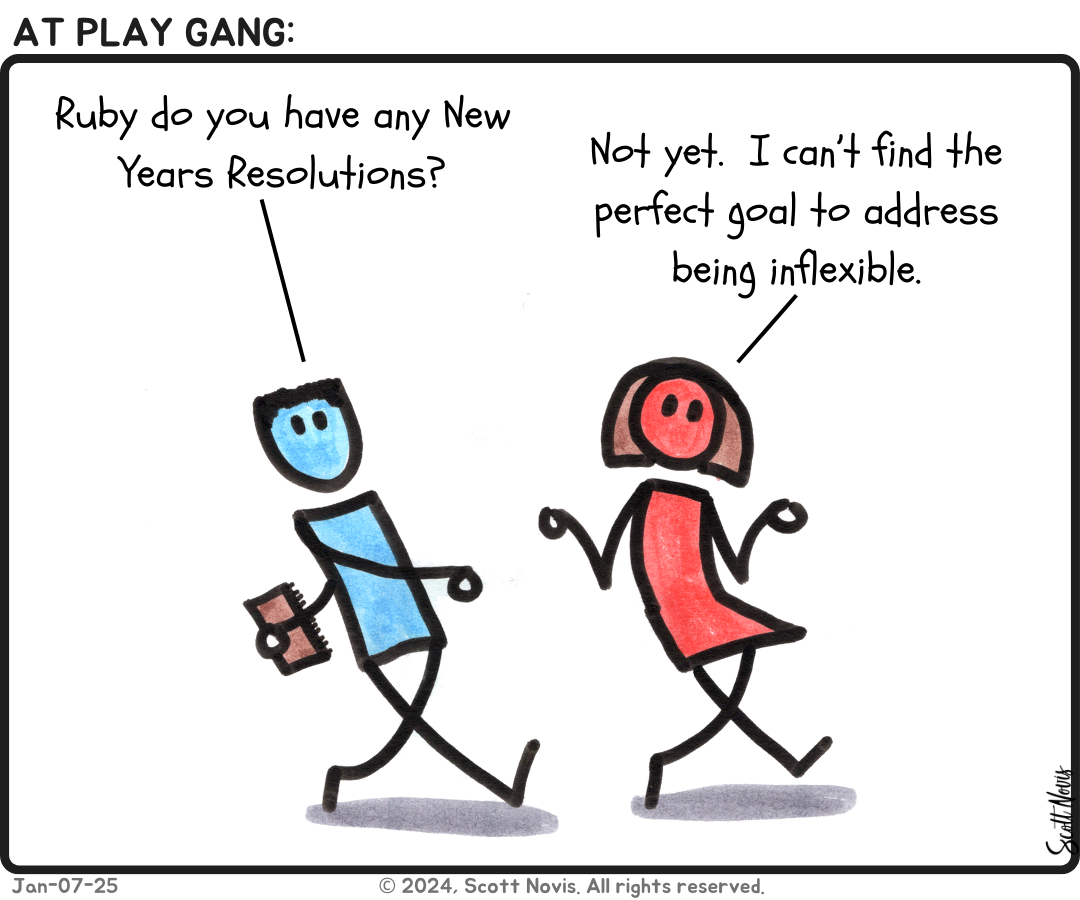
Drop a file in public/images/ and reference it with an absolute path — . Images render bordered, centered, and click-to-zoom.
Footnotes
Here’s a claim that needs a source.1
Footnotes
-
And here’s the footnote backing it up. ↩