A friend of mine recently asked me to a “Cheat Sheet” for setting up an Obsidian Vault the way that I recommend for Personal Knowledge Management. This blog post is the result of that request.
Overview
The process for installing obsidian will involve downloading the application. Running the installer. Then you will create the folder structure for your Personal Knowledge Management system. Finally, you will want to create some tool folders like Daily Note and Template, and create a file called the Daily Note Template. You will configure the Daily Note plugin and install two more plugins for future use.
This should leave you in a position to begin to play around with Obsidian.
The Steps
(1) Download the Obsidian installer from https://obsidian.md
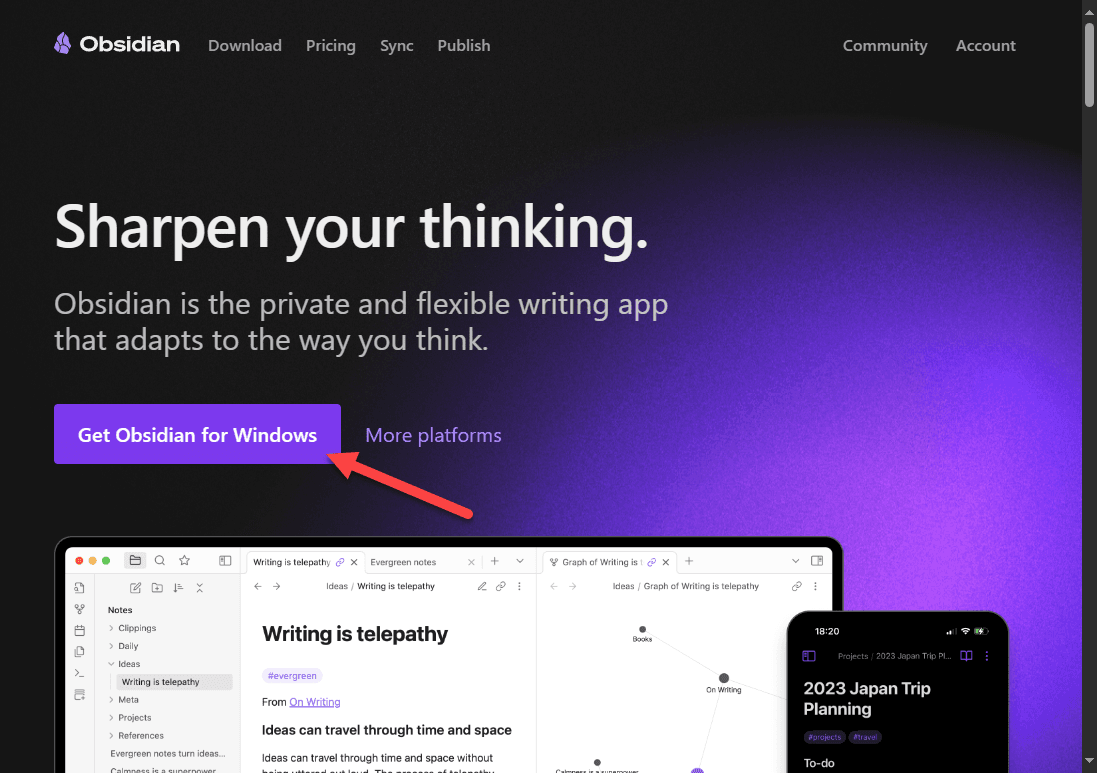
(2) Run the executable.
(3) Create 7 new Folders
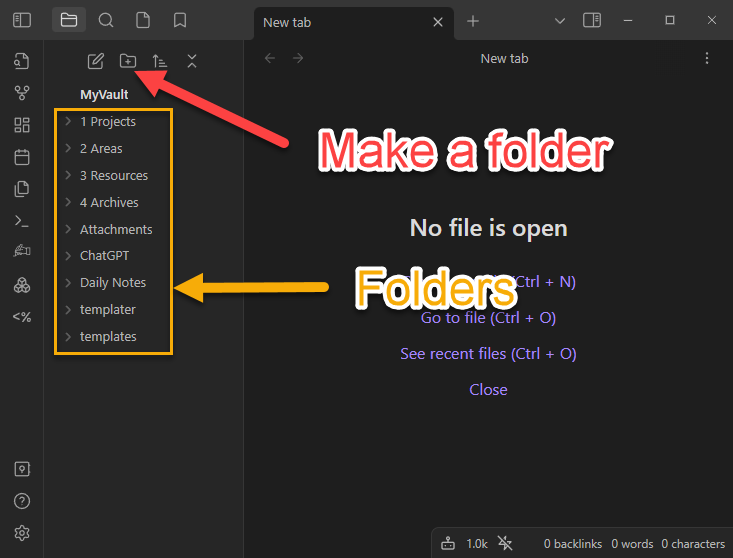
Note: There are TWO folders that look really similar, Templates and Templater. Initially you will want them both.
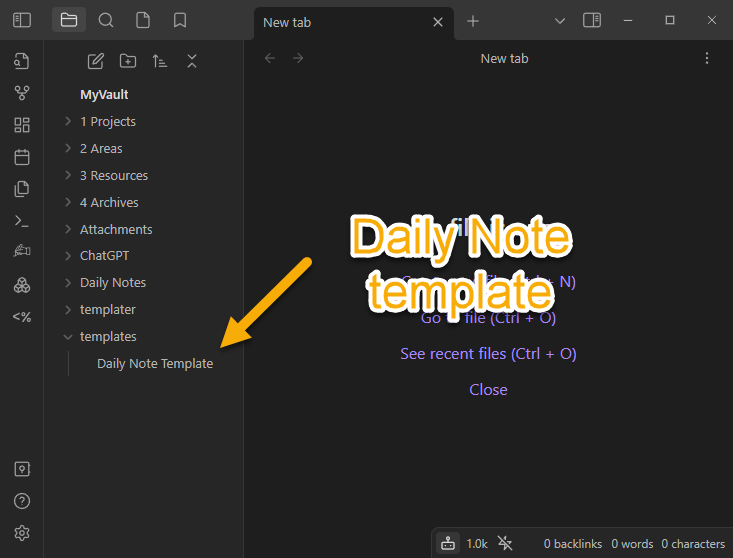
(4) Create a file called Daily Note Template in the Daily Notes folder. (see bottom of the file for a simple Daily Note Template)
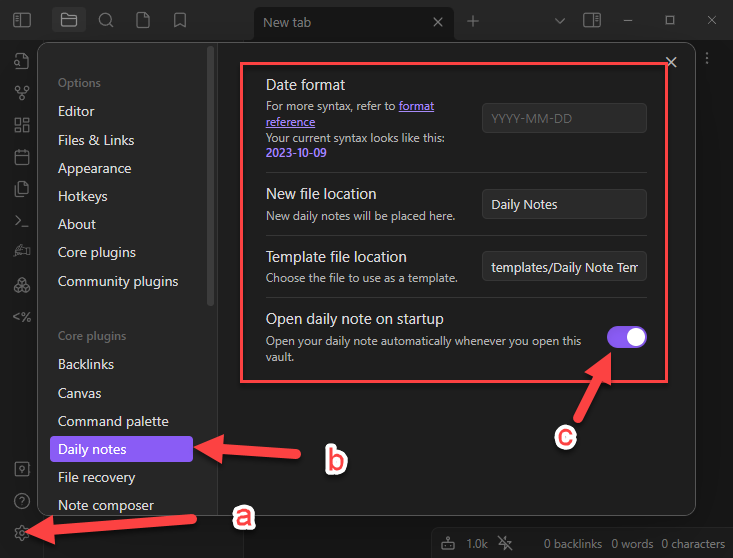
(5) Setup the Daily Note Plugin
a. Click the gear
b. Select Daily Note from the Core plugins section of the Setup.
c. Make sure the New file location is set to Daily Notes and that the Template file location is that new Daily Note Template you created earlier. Finally turn on the setting, Open daily note on startup
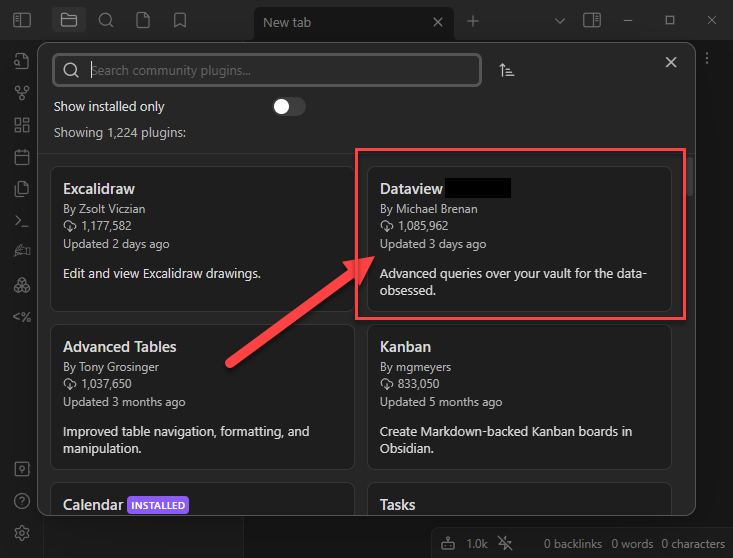
(6) Install the Dataview Plugin
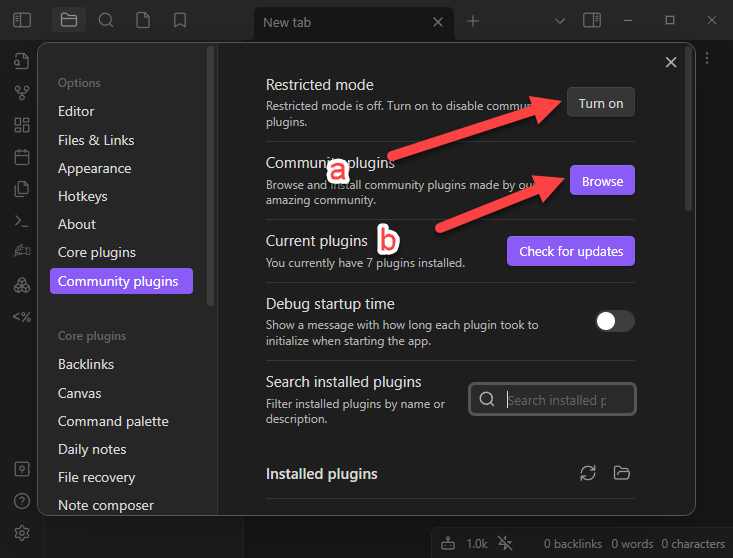
a. Turn off Restricted mode (so you can browse for community plugins)
b. Browse community plugins.
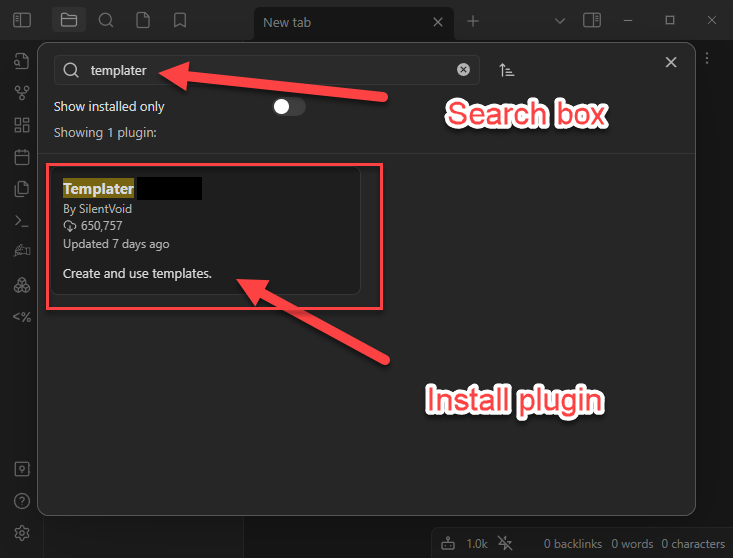
(7) Install the Templater Plugin
We will come back later to configure Dataview and Templater, but it is good to have them installed from the beginning.
They will not be active so you won’t need to worry about them yet.
Simple Daily Note Template
The following bit of text contains some codes that will be expanded when the template is copied.
{{date:MMMM Do, YYYY}}will become a long date format like October, 9th 2023 when it expands.{{date:dddd}}will become the name of the day, like Monday when it expands.
There are many more formats, but these will get you started. See Obsidian help for more template expansions.
# {{date:MMMM Do, YYYY}}
## {{date:dddd}}
***

## Quotes

> quote

## Morning Routine

## Habits
- [ ] Daily Devotional
- [ ] Meditate
- [ ] Exercise
- [ ] Write

### Gratitude
1. people
2. opportunities
3. immediate surroundings

## Notes

-